Introduction
For gamers in Malaysia, few experiences are as frustrating as encountering a game crash on your PC. Whether you're immersed in an epic battle or exploring expansive virtual worlds, a sudden crash can disrupt your gaming session and lead to lost progress. Understanding how to troubleshoot game crashes is essential for maintaining a smooth gaming experience in 2026. With the rapid evolution of gaming technology and software, issues can arise from various sources, affecting everything from gameplay to overall system performance.
Common Causes
Game crashes can occur due to a myriad of reasons, and identifying the root cause is the first step toward resolving the issue. Here are some common culprits:
- Outdated Graphics Drivers: Keeping your NVIDIA or AMD drivers updated is crucial. Many crashes can be traced back to incompatible or outdated drivers that fail to support new game updates.
- Overheating: High temperatures can cause your PC to throttle performance or crash entirely. Make sure your system has adequate cooling, especially during intense gaming sessions.
- Software Conflicts: Background applications can interfere with game performance. Software such as screen recorders or overlay programs from platforms like Steam and Epic Games may cause conflicts.
- Insufficient Hardware: If your PC doesn't meet the minimum system requirements for a game, crashes are likely. Ensure that your RAM, CPU, and GPU can handle your gaming needs.
- Corrupted Game Files: A corrupted installation can lead to crashes. Verifying the integrity of game files through platforms like Steam can often resolve this issue.
Step-by-Step Troubleshooting
When you encounter a game crash, follow these troubleshooting steps to identify and resolve the problem:
- Update Your Graphics Drivers: Visit the NVIDIA or AMD website to download the latest drivers. This is often the simplest and most effective solution.
- Check System Requirements: Ensure your PC meets the game's minimum requirements. This can be found on the game’s page on Steam or Epic Games.
- Monitor Temperatures: Use software like HWMonitor to check your system's temperatures. If overheating is detected, consider cleaning your PC’s fans or investing in better cooling solutions.
- Close Background Applications: Before launching your game, close unnecessary applications that may consume resources or conflict with the game.
- Verify Game Files: On platforms like Steam, right-click on the game, go to Properties, and select 'Verify Integrity of Game Files'. This process will replace corrupted files.
- Run Games as Administrator: Right-click on the game’s shortcut and select 'Run as Administrator'. This can help with permissions issues that might be causing crashes.
- Adjust Graphics Settings: Lowering your game’s graphics settings can improve performance and stability, especially on lower-end hardware.
Advanced Solutions
If the basic troubleshooting steps don’t resolve the issue, consider these advanced solutions:
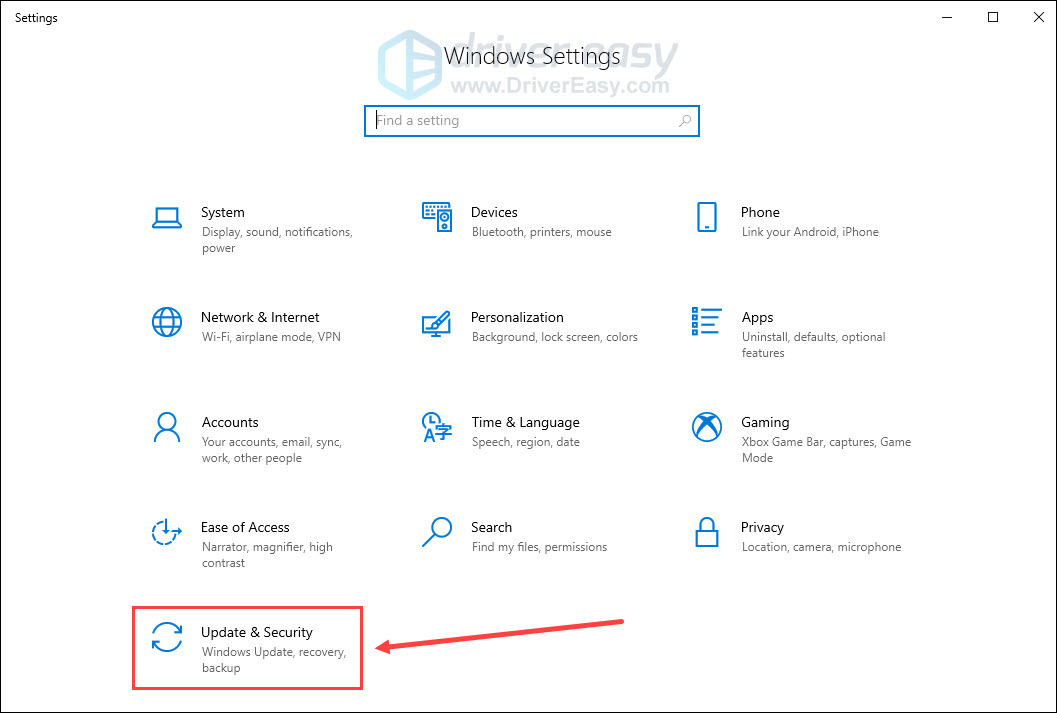
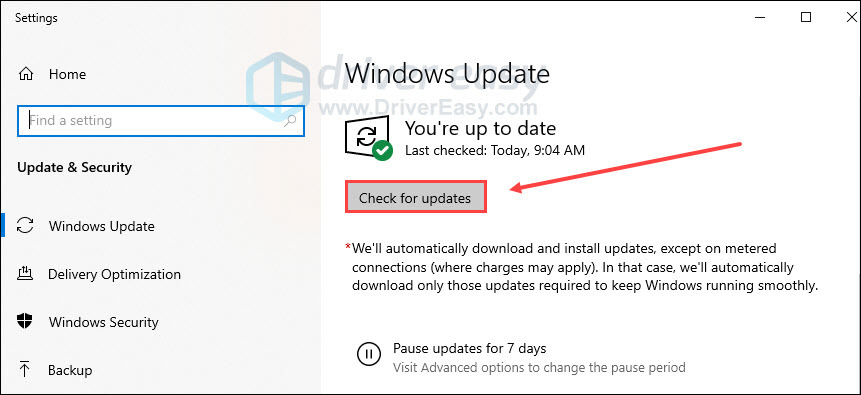
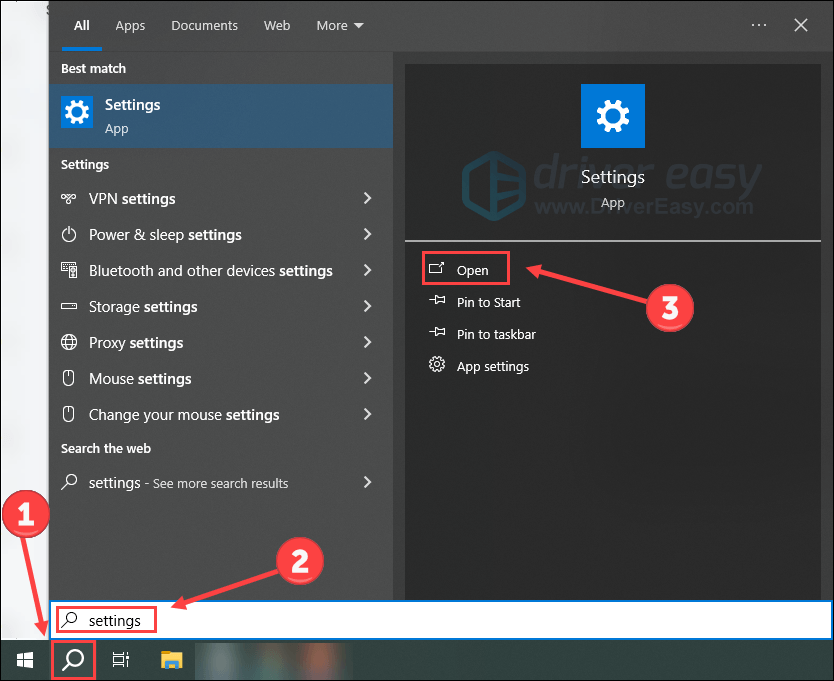
- Check for Windows Updates: Ensure your operating system is up to date. Updates often contain patches that improve compatibility with games.
- Adjust Virtual Memory Settings: Increasing your paging file size can help if your system is running out of RAM during gaming sessions.
- Disable Overclocking: If you have overclocked any components, revert them to their default settings as this can lead to instability.
- Perform a Clean Boot: This can help identify if background services are causing crashes. Use the System Configuration tool to disable startup programs and services temporarily.
- Reinstall the Game: As a last resort, uninstalling and then reinstalling the game can resolve persistent issues caused by corrupted files.
Tools and Resources
Utilizing specific tools can significantly aid in diagnosing and fixing game crashes:
- MSI Afterburner: This tool assists in monitoring GPU performance and temperatures, essential for preventing overheating.
- HWMonitor: Use it to keep an eye on system temperatures and voltages.
- Driver Booster: A reliable software for keeping your drivers up-to-date automatically.
- Windows Event Viewer: This built-in tool can provide detailed logs on what caused the crash, helping you pinpoint issues.
- Reliability Monitor: Another Windows tool that provides a history of system events and errors which can shed light on recurring problems.
FAQs
What causes PC games to crash?
PC games can crash due to outdated graphics drivers, overheating, software conflicts, insufficient hardware, or corrupted game files. Understanding these factors is crucial for troubleshooting effectively.
How can I prevent game crashes on my PC?
To minimize the risk of game crashes, regularly update your graphics drivers, monitor system temperatures, ensure your hardware meets game requirements, and close unnecessary background applications before gaming. Regular maintenance and checks will go a long way in ensuring a stable gaming experience.
By following these troubleshooting methods tailored for the Malaysian gaming community, you can significantly enhance your gaming experience in 2026. Remember, each issue may require a unique solution, so don’t hesitate to explore various troubleshooting paths to find the right fit for your situation.