Top 5 Solutions for Game Crashing on Startup in 2026
For many gamers in Malaysia, nothing is more frustrating than a game crashing on startup. In 2026, as the gaming landscape continues to evolve with high-quality graphics and intricate gameplay mechanics, technical issues like these can be a significant barrier to enjoying your favorite titles. Whether you’re launching a new AAA game from Steam or Epic Games, or diving into an indie gem, understanding the common causes of crashes and how to troubleshoot them is essential. This guide will cover the most frequent reasons for game crashes on startup and provide step-by-step solutions to get you back into the action.
Common Causes of Game Crashes
Game crashes at startup can stem from various issues, ranging from hardware malfunctions to software conflicts. Here are some of the most common culprits:
- Hardware Incompatibility: One of the leading causes of crashes is hardware incompatibility. For example, older NVIDIA or AMD graphics cards may struggle with newer titles that require more advanced capabilities. Always check the minimum and recommended specifications before purchasing a game.
- Driver Issues: Outdated or corrupted graphics drivers can lead to startup crashes. Regular updates from NVIDIA and AMD are crucial to ensure your system runs smoothly with the latest games.
- Software Conflicts: Background applications can sometimes interfere with game startup. Programs such as overlays from Steam or Epic Games, or even antivirus software, can cause unexpected crashes.
- Corrupted Game Files: If the game files are corrupted during download or installation, this can prevent the game from launching altogether. This is particularly common with larger games that require significant downloads.
- Insufficient System Resources: Low RAM or inadequate storage can hinder a game from starting. It's essential to ensure your gaming rig meets the requirements, especially for graphically intense games.
Step-by-Step Fixes
Now that we understand the common causes of game crashes on startup, let's look at some practical troubleshooting steps you can follow:
- Update Graphics Drivers: Ensure your graphics drivers are up to date. For NVIDIA users, you can use the GeForce Experience application for easy updates. AMD users can check the Radeon Software for the latest drivers.
- Verify Game Files: If you're using Steam or Epic Games, both platforms have built-in options to verify the integrity of game files. This process checks for any damaged files and replaces them automatically.
- Check for Background Applications: Close any unnecessary applications running in the background. You can do this through the Task Manager. Pay special attention to overlays from Steam and Discord, as they are known to cause issues with some games.
- Run as Administrator: Sometimes, running the game as an administrator can resolve permission-related issues. Right-click on the game’s executable file and select ‘Run as Administrator’.
- Reinstall the Game: If all else fails, uninstalling and then reinstalling the game may resolve any persistent issues. This is especially effective if corrupted files are suspected.
Preventative Measures
While troubleshooting can solve immediate startup crashes, taking preventative measures can help you avoid these issues in the future. Here are some tips tailored for the Malaysian gaming community:
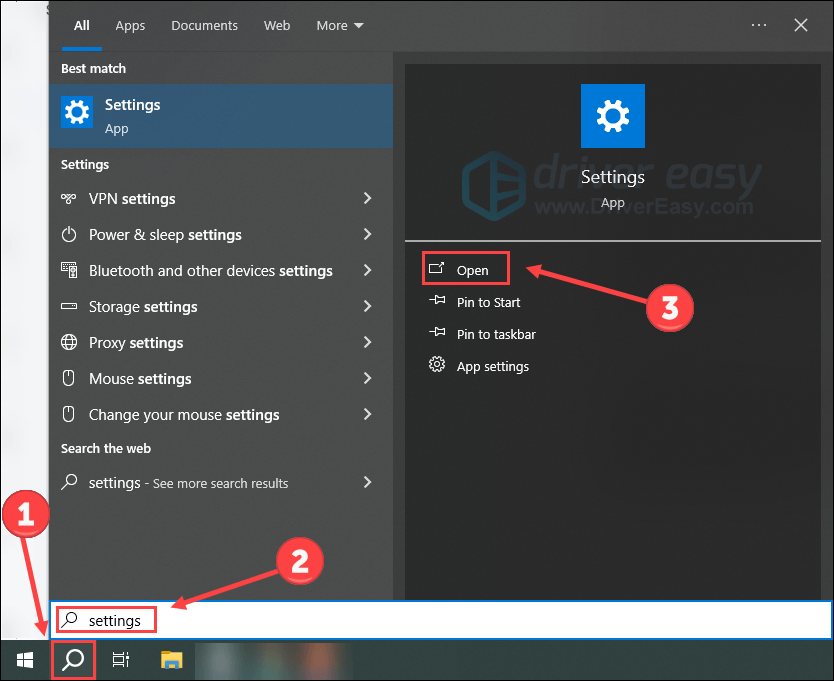
- Regular System Updates: Keep your operating system updated to ensure compatibility with the latest games and software. Windows updates can often include crucial performance enhancements.
- Check Hardware Compatibility: Before purchasing any new game, always check that your hardware meets the requirements. This is vital for maintaining a smooth gaming experience, especially with popular titles in Malaysia.
- Clean Your System: Dust and debris can accumulate in your gaming rig, causing overheating and other issues. Regularly cleaning your hardware can prevent performance drops and crashes.
- Use Reliable Internet: For online games, having a stable internet connection is crucial. Consider upgrading to a fiber-optic connection if you frequently experience lag or disconnects.
- Backup Your Data: Regular backups can save you from losing saved games or data due to unexpected crashes. Use cloud storage solutions provided by platforms like Steam or Epic Games.
FAQs
Why does my game crash on startup?
Game crashes on startup can occur due to a variety of issues, including hardware incompatibility, outdated drivers, software conflicts, or corrupted game files. It's essential to troubleshoot each of these areas systematically to identify the root cause.
What should I do if my game won't launch?
If your game won't launch, start by updating your graphics drivers and verifying the integrity of the game files via Steam or Epic Games. If those steps don’t work, check for background applications that might be causing conflicts and consider reinstalling the game if necessary.
In conclusion, experiencing game crashes on startup can be frustrating, but understanding the common causes and following the troubleshooting steps outlined can help you resolve these issues effectively. By taking proactive measures and staying informed, Malaysian gamers can enhance their gaming experience and minimize disruptions.